
Table of Contents
- Why WhatsApp Safety Matters for Indian Businesses
- WhatsApp Business vs Personal Account
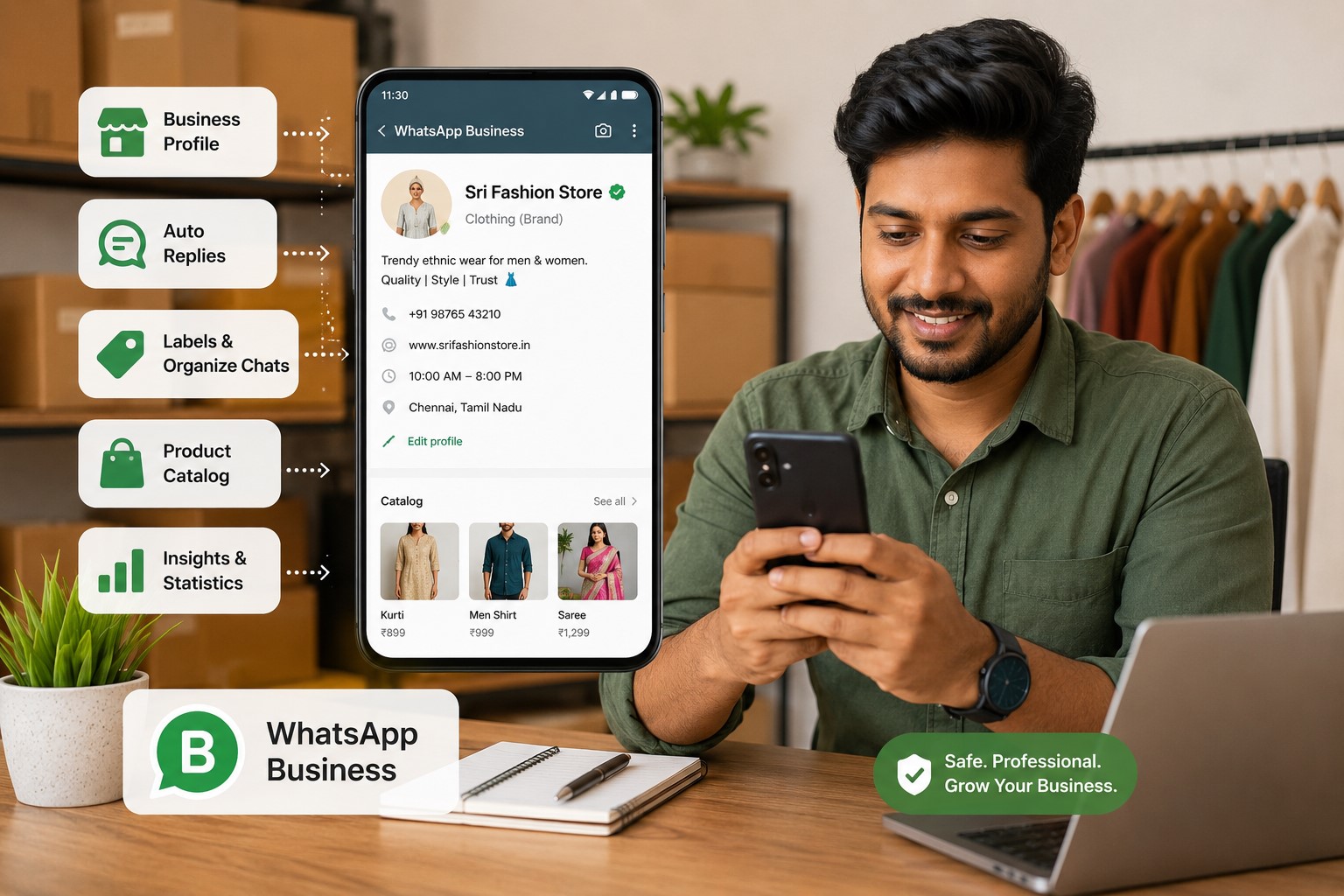
- Complete Business Profile Setup
- Avoid Spam & Account Blocks
- Smart Automation Features
- Product Catalog Best Practices
- Customer Management with Labels
- Security & Two-Step Verification
- WhatsApp Cloud API for Scaling
- Ecommerce & Marketing Integrations
- Frequently Asked Questions
Why WhatsApp Safety Matters for Indian Businesses
WhatsApp has become the primary customer communication channel for over 15 million Indian small businesses. However, improper usage leads to account blocks, lost customer data, and revenue disruption.
Common reasons businesses lose their WhatsApp accounts:
- Sending bulk promotional messages without consent
- Using third-party automation tools that violate WhatsApp policies
- Excessive forwarding and copy-paste messaging
- Not using WhatsApp Business app for commercial purposes
- Poor response rate to customer messages
This checklist is built from real case studies across Puducherry, Chennai, Bangalore, and Mumbai-based SMBs who successfully scaled their WhatsApp operations without facing blocks.
💡 Pro Tip: WhatsApp permanently bans numbers in extreme cases. Always have a backup communication channel and never use your primary business number without following safety guidelines.
1. Use WhatsApp Business Instead of Personal WhatsApp
The official WhatsApp Business app is specifically designed for commercial communication and provides features that personal accounts don't have. Using personal WhatsApp for business is the #1 reason for account restrictions.
Key Differences Between WhatsApp Personal vs Business
Feature Personal WhatsApp WhatsApp Business Business Profile ❌ Not available ✅ Complete business info Product Catalog ❌ No ✅ Up to 500 products Auto Replies ❌ No ✅ Greeting, Away, Quick Replies Labels & Organization ❌ Basic labels only ✅ Custom business labels Message Statistics ❌ No analytics ✅ Read, delivered, sent stats Multi-device Support ✅ Limited ✅ Up to 4 devices + web WhatsApp API Access ❌ Not allowed ✅ Can upgrade to API How to Migrate from Personal to Business (Step-by-Step)
- Download WhatsApp Business from Google Play Store or Apple App Store
- Verify your business number (can be same as personal if migrating)
- Import chat history during setup (one-time option)
- Setup business profile with complete details
- Configure catalog and labels for your products/services
⚠️ Important: You cannot use the same phone number on both Personal WhatsApp and WhatsApp Business simultaneously. Choose one.
2. Complete Your Business Profile (Builds Trust & Credibility)
A complete business profile increases customer confidence by 73% according to Meta's research. Incomplete profiles signal unprofessionalism and reduce conversion rates.
Essential Profile Elements
1. Business Name: Use your registered business name, not personal name
2. Profile Photo: Upload high-quality business logo (min 192x192px)
3. Business Description: Clear 256-character explanation of what you offer
4. Business Category: Choose accurate category (Retail, Services, Restaurant, etc.)
5. Business Address: Physical location for local customers
6. Business Hours: Set operational timings (builds response expectations)
7. Website URL: Link to your website or social media
8. Email Address: Professional business email
Profile Optimization for Indian Businesses
Description Example (Good):
"Premium handmade jewellery in Chennai. Gold, silver & diamond collections. Custom designs available. COD & online payment. Visit our showroom in T. Nagar or order via WhatsApp."
Description Example (Bad):
"We sell jewellery"
Your description should include:
- What you sell/offer
- Location/area served
- Unique selling points (USP)
- Payment methods accepted
- Call-to-action
✓ Profile Completion Checklist
- ☐ Business name matches legal registration
- ☐ Logo uploaded (professional, clear, branded)
- ☐ Description includes keywords customers search
- ☐ Category accurately reflects business type
- ☐ Address added (helps local SEO)
- ☐ Business hours set correctly
- ☐ Website/Instagram linked
- ☐ Business email added
3. Avoid Spam Messaging (The #1 Reason for Bans)
WhatsApp's spam detection algorithm is highly sensitive. Even legitimate businesses get blocked for patterns that resemble spam behavior.
What WhatsApp Considers Spam
❌ Prohibited Activities:
- Sending identical messages to 20+ contacts within short timeframe
- Copy-pasting promotional messages repeatedly
- Broadcasting to contacts who haven't saved your number
- Sending messages to people who've blocked you (system tracks this)
- Excessive forwarding of media files
- Using third-party bulk messaging apps
- Sending messages late night (10 PM - 8 AM) to unsaved contacts
Safe Messaging Practices
✅ Do This Instead:
- Get Explicit Consent: Only message customers who've opted in
- Personalize Messages: Use customer name, reference past orders
- Vary Your Content: Don't send identical messages back-to-back
- Use Broadcast Lists Carefully: Max 256 contacts, ensure they've saved your number
- Respect Response Rates: If customers don't reply, reduce message frequency
- Add Value: Send useful content, not just promotional spam
Safe Daily Messaging Limits
Account Age Safe Daily Limit Notes New (0-7 days) 20-30 messages Build reputation slowly Established (1-3 months) 50-100 messages Maintain high response rate Mature (6+ months) 200-300 messages With good engagement history WhatsApp API Unlimited Requires official approval 📊 Real Case Study:
A computer service business was sending 100+ identical "Service reminder" messages daily. Account got temporarily banned after 3 days. After switching to personalized messages with customer name and specific service history, they scaled to 150+ daily conversations without issues.
4. Setup Smart Auto Replies (Save 40% Response Time)
Auto replies improve customer experience while reducing manual workload. WhatsApp Business offers three types of automated messages.
Types of Auto Replies
1. Greeting Message (First-time customers):
Triggered when someone messages you for the first time or after 14 days of inactivity.
Example Template:
"Hi! 👋 Welcome to [Business Name]. We offer [products/services] across [location]. How can we help you today?"
2. Away Message (Outside business hours):
Automatically replies when you're offline or outside business hours.
Example Template:
"Thanks for reaching out! 🙏 Our team is currently offline. Business hours: Mon-Sat, 9 AM - 7 PM. We'll respond within 2 hours during working hours. For urgent queries, call: [phone number]"
3. Quick Replies (FAQ shortcuts):
Pre-written responses to common questions. Type shortcut to send.
Example Quick Replies:
/price→ "Our product catalog is here: [link]. Prices range from ₹500-₹5000. What are you looking for?"/delivery→ "We deliver across Tamil Nadu. Delivery time: 2-4 days. Free shipping on orders above ₹1000."/payment→ "We accept: UPI, Credit/Debit cards, Net Banking, Cash on Delivery. Pay securely via our payment link."/location→ "Visit us at: [Address with Google Maps link]"
How to Setup Auto Replies (Step-by-Step)
- Open WhatsApp Business app
- Tap Menu (⋮) → Business Tools → Messaging Tools
- Select message type (Greeting/Away/Quick Replies)
- Enable toggle and write your message
- For Away message: Set schedule (e.g., Outside business hours)
- For Quick Replies: Create shortcut keyword (e.g., /price) and message
- Save and test
💡 Advanced Tip: Use emojis in auto replies to make them feel personal. But limit to 2-3 emojis per message. Overuse looks unprofessional.
5. Create Product Catalog (Boost Sales by 35%)
WhatsApp Catalog lets customers browse your products directly in chat without leaving the app. Businesses with active catalogs see 35% higher conversion rates.
Catalog Features
- Add up to 500 products/services
- Include product images, price, description, and link
- Organize into collections (categories)
- Share specific products in chat
- Customers can share products with friends
- Works offline (images cached)
How to Create Your First Catalog
- Open WhatsApp Business → Menu (⋮) → Business Tools → Catalog
- Tap Add Product
- Upload product image (square format, min 500x500px)
- Enter product name (keep under 40 characters)
- Add price in ₹ (Indian Rupees)
- Write description (up to 800 characters, use keywords)
- Add product link (optional - your website product page)
- Tap Save
Catalog Best Practices for Indian Businesses
Product Images:
- Use white/clean background
- Show product from multiple angles (create collections)
- Include size reference if applicable
- Professional lighting (avoid dark/blurry photos)
- No watermarks or text overlays
Product Descriptions:
- Include material, size, color variants
- Mention USP (handmade, organic, imported, etc.)
- Add care instructions if relevant
- Use bullet points for readability
- Include keywords customers search ("pure cotton kurta" not just "kurta")
Pricing Tips:
- Always display price (hiding price reduces inquiries)
- Show MRP and offer price if discounted
- Mention "Starting from ₹X" for customizable products
- Add "Inclusive of taxes" for clarity
How to Share Catalog in Chat
When a customer asks about products:
- Open chat
- Tap 📎 (Attach) → Catalog
- Select specific product or share entire catalog
- Add message: "Here's our collection. Let me know which one you like!"
📊 Real Example: Jewellery Business
After adding 50 products to WhatsApp Catalog with proper descriptions and pricing, they reduced "What's the price?" messages by 60% and increased order value by 28% because customers could browse and bundle items.
6. Use Labels for Customer Management (CRM Alternative)
Labels help organize customer conversations like a mini-CRM. For small businesses, this eliminates the need for expensive customer management software.
Default Labels
WhatsApp Business provides 5 pre-set labels:
- 🟢 New customer
- 🟡 New order
- 🔵 Order complete
- 🟣 Paid
- 🔴 Pending payment
Custom Label Ideas for Different Business Types
E-commerce / Retail:
- 📦 Order Packed
- 🚚 Out for Delivery
- ✅ Delivered
- 🔄 Return/Exchange
- ⭐ VIP Customer
- 🎁 Repeat Customer
Service Business (Salon, Repairs, Coaching):
- 📅 Appointment Booked
- ✅ Service Completed
- 🔔 Follow-up Required
- 💬 Inquiry Only
- ❌ Not Interested
B2B / Wholesale:
- 💼 Potential Lead
- 📊 Quote Sent
- ✅ Deal Closed
- 🤝 Active Client
- ⏳ Follow-up Needed
How to Create & Use Labels
- Open any chat → Tap Menu (⋮) → Labels
- Select existing label or tap New Label
- Name your label (e.g., "Payment Pending")
- Assign color for easy identification
- Tap chats to add/remove labels
Pro Workflow:
- New inquiry → Label as "New Lead"
- Quote sent → Change to "Quote Sent"
- Order confirmed → "New Order"
- Payment received → "Paid"
- Order shipped → "Out for Delivery"
- Order delivered → "Order Complete"
Filter Chats by Labels
Access labeled chats quickly:
- WhatsApp Business home screen → Tap Labels (top menu)
- Select label to view all chats with that label
- Use for daily task management (e.g., check "Payment Pending" before end of day)
💡 Daily Routine Tip: Every morning, review "New Lead" and "Follow-up Required" labels. Every evening, check "Payment Pending" and "Order Packed" to clear pending tasks.
7. Enable Two-Step Verification (Critical Security)
Two-step verification adds a 6-digit PIN to prevent unauthorized account access. This is especially critical if someone gets your SIM card or phone.
Why It Matters
Without 2-step verification:
- Anyone with your SIM can access your WhatsApp account
- Customer data and chat history at risk
- Scammers can impersonate your business
- Lost phone = lost business account
How to Enable Two-Step Verification
- Open WhatsApp Business → Menu (⋮) → Settings
- Tap Account → Two-step verification
- Tap Turn On
- Create a 6-digit PIN (don't use 123456, 000000, or birthdate)
- Confirm PIN
- Add recovery email (important - helps recover if you forget PIN)
- Tap Done
Remember: You'll be asked to enter this PIN occasionally to verify it's still you.
⚠️ Critical: If you forget your PIN and don't have recovery email, you must wait 7 days to reset. Save your PIN somewhere secure.
Additional Security Best Practices
- ✅ Enable biometric lock (fingerprint/face) in WhatsApp settings
- ✅ Don't share OTP codes with anyone (WhatsApp never asks for it)
- ✅ Verify linked devices regularly (Settings → Linked Devices)
- ✅ Use strong password for email linked to WhatsApp
- ✅ Enable SIM lock on your phone
- ❌ Never click suspicious links sent in WhatsApp
- ❌ Don't download APK files from unknown sources
8. Understand WhatsApp Cloud API (For Scaling Businesses)
When your business grows beyond 300-500 daily conversations, WhatsApp Business App becomes limiting. That's when you need WhatsApp Cloud API.
WhatsApp Business App vs WhatsApp Cloud API
Feature Business App Cloud API Best For 1-5 person teams Growing businesses, multiple agents Cost Free Free (pay per conversation after 1000/month) User Limit 1 phone + 4 linked devices Unlimited agents Message Volume Limited to manual capacity Unlimited (automated) CRM Integration Not possible Full API integration Automation Basic auto-replies Advanced chatbots, workflows Analytics Basic stats Advanced reporting & insights Verification Badge Not available Green tick verification available When to Upgrade to WhatsApp API
Consider WhatsApp Cloud API when:
- You're handling 300+ customer conversations daily
- You need multiple team members responding simultaneously
- You want to integrate with your CRM, e-commerce platform, or ticketing system
- You need advanced automation (order tracking, appointment reminders, payment links)
- You want to send bulk notifications (with customer consent)
- You need detailed analytics and reporting
WhatsApp API Pricing in India (2026)
Conversation-based pricing:
- First 1,000 conversations/month: Free
- Marketing conversations: ₹0.65 - ₹1.20 per conversation
- Utility conversations (OTP, order updates): ₹0.30 - ₹0.50 per conversation
- Service conversations (customer support): ₹0.25 - ₹0.40 per conversation
(Prices vary based on Meta's rate card updates)
How to Get WhatsApp Cloud API Access
- Choose a Business Solution Provider (BSP): Like Gupshup, Interakt, Wati, AiSensy, or directly through Meta
- Register your business: Provide business documents (GST, PAN, incorporation certificate)
- Verify your phone number: Dedicated business number required (can't be used on app)
- Get approved: Meta reviews and approves (1-3 days)
- Integrate: Connect API to your CRM/website/platform
- Apply for Green Tick: Optional verification for brand trust
💡 SDWebXperts Insight: For businesses doing ₹5 lakh+ monthly revenue through WhatsApp, API investment pays for itself within 2 months through automation savings.
9. Connect WhatsApp With E-commerce & Marketing Platforms
Modern businesses don't use WhatsApp in isolation. Integration with other platforms creates seamless customer journeys and automated workflows.
Popular WhatsApp Integrations for Indian Businesses
1. E-commerce Platforms
Shopify + WhatsApp:
- Auto-send order confirmation via WhatsApp
- Abandoned cart recovery messages
- Shipping updates with tracking links
- Product catalog sync
WooCommerce + WhatsApp:
- Click-to-WhatsApp button on product pages
- Order notifications to both customer and admin
- Cash on Delivery confirmation workflows
Razorpay + WhatsApp:
- Send payment links via WhatsApp
- Payment confirmation messages
- Invoice sharing
2. Meta Ads Integration
Click-to-WhatsApp Ads (Facebook & Instagram):
- Run ads with "Send Message" button
- Leads land directly in WhatsApp chat
- Pre-filled message templates
- Track conversions in Ads Manager
Setup Guide:
- Connect WhatsApp Business Account to Facebook Business Manager
- Create ad campaign with "Messages" objective
- Select WhatsApp as destination
- Design ad creative
- Set pre-filled message (e.g., "Hi, I'm interested in [Product Name]")
- Launch campaign and respond to incoming messages promptly
3. CRM Integration
Popular CRMs with WhatsApp:
- Zoho CRM + WhatsApp
- Salesforce + WhatsApp
- HubSpot + WhatsApp
- Freshworks CRM + WhatsApp
Benefits:
- All WhatsApp conversations automatically logged
- Customer history visible while chatting
- Automated follow-up workflows
- Team collaboration on customer queries
4. Google Sheets Integration (For Small Businesses)
Free alternative to CRM for tracking leads:
- Use Zapier or Make.com to connect WhatsApp API to Google Sheets
- Automatically log new customer details
- Track order status
- Create sales reports
Instagram + WhatsApp Unified Inbox
Manage both Instagram DMs and WhatsApp messages from one inbox:
- Go to Meta Business Suite
- Connect Instagram account
- Link WhatsApp Business Account
- Access unified inbox from business.facebook.com
- Respond to both platforms without switching apps
📊 Integration Success: Sapeedo (Construction Materials)
After integrating WhatsApp with their website inquiry form, 68% of web leads preferred WhatsApp over phone calls. Response time improved from 4 hours to 15 minutes, increasing quote-to-order conversion by 42%.
10. Final Thoughts: WhatsApp as Business Infrastructure
WhatsApp is no longer just a messaging app — it's business infrastructure for customer acquisition, communication, sales, and retention.
Key Takeaways:
- ✅ Always use WhatsApp Business app for commercial purposes
- ✅ Complete your profile to build credibility
- ✅ Follow anti-spam guidelines to avoid account blocks
- ✅ Automate repetitive tasks with auto-replies
- ✅ Use catalog to showcase products professionally
- ✅ Organize customers with labels for better management
- ✅ Secure your account with two-step verification
- ✅ Upgrade to API when scaling beyond 300 daily chats
- ✅ Integrate with e-commerce and marketing platforms
Businesses that implement this checklist see:
- 40% reduction in customer service time
- 35% increase in sales conversions
- Zero account blocks or restrictions
- Better customer satisfaction and retention
Need Help Implementing This?
SDWebXperts helps businesses across India build WhatsApp marketing systems, integrate with websites, and automate customer communication.
Services we offer:
- WhatsApp Business setup and optimization
- WhatsApp Cloud API implementation
- Website + WhatsApp integration
- Click-to-WhatsApp ad campaigns
- Customer management automation
Get Free Consultation WhatsApp Us Now
Frequently Asked Questions (FAQ)
Can I use the same number for personal WhatsApp and WhatsApp Business?
No, you cannot use the same phone number on both apps simultaneously. You need to choose one. However, you can migrate from personal to business and import your chat history during the first-time setup.
How many messages can I send per day on WhatsApp Business without getting banned?
There's no official limit, but safe practices suggest: 20-30 messages/day for new accounts (0-7 days), 50-100 for established accounts (1-3 months), and 200-300 for mature accounts (6+ months) with good engagement history. Quality and personalization matter more than quantity.
What's the difference between WhatsApp Business app and WhatsApp Business API?
WhatsApp Business app is free, designed for small businesses with 1-5 person teams, and has basic automation features. WhatsApp Business API (Cloud API) is for scaling businesses, supports unlimited agents, advanced automation, CRM integrations, and costs based on conversation volume (first 1,000/month free).
How do I recover my WhatsApp Business account if it gets banned?
If temporarily banned (24-48 hours), wait for the restriction to lift. For permanent bans, use WhatsApp's in-app "Request Review" feature (Settings → Help → Contact Us). Provide explanation and wait 2-7 days for review. Prevention is better than cure — always follow safety guidelines to avoid bans.
Is WhatsApp Business free for businesses in India?
Yes, WhatsApp Business app is 100% free with no hidden charges. WhatsApp Cloud API is also free for the first 1,000 conversations per month. Beyond that, you pay per conversation (₹0.25 to ₹1.20 depending on conversation type). Regular internet data charges apply.
Can I run WhatsApp ads to get more customers?
Yes, through Facebook and Instagram "Click-to-WhatsApp" ads. Connect your WhatsApp Business Account to Facebook Business Manager, create a Messages campaign, and set WhatsApp as the destination. Customers click your ad and land directly in WhatsApp chat with you.
How do I add multiple team members to WhatsApp Business?
WhatsApp Business app supports 1 phone + up to 4 linked devices (via WhatsApp Web/Desktop). For more team members or proper multi-agent support with role management, you need WhatsApp Cloud API integrated with a CRM or helpdesk platform.
Can I send bulk promotional messages on WhatsApp Business?
Only to customers who have explicitly opted in and saved your number. Use Broadcast Lists (max 256 contacts) for WhatsApp Business app. For larger volumes, use WhatsApp Cloud API with approved message templates. Never send unsolicited promotional messages — it violates WhatsApp policies and leads to bans.
Related Resources
Last Updated: May 16, 2026 | Category: Business Growth | Reading Time: 8 minutes
About the Author: SDWebXperts team has helped 200+ Indian businesses implement WhatsApp marketing systems across Puducherry, Chennai, Bangalore, and Mumbai.